Table of contents
A list of the document's headings, each one a link to its place on the page. You don't write the list. It's read off the headings every time the page is drawn, so a heading you add, rename or move is in the right place in the list straight away.
This is the block, listing this page:
Adding one
Type / at the start of an empty line and pick Table of contents, or use Add block between two things on the page (Adding a block). It goes in showing every heading down to the third size, under the title "Contents". The usual place for it is straight after the document's opening paragraph.
Its options
Click the list, away from its links, and its form opens at the side. In the infinite layout, Edit on the toolbar over the block does the same.
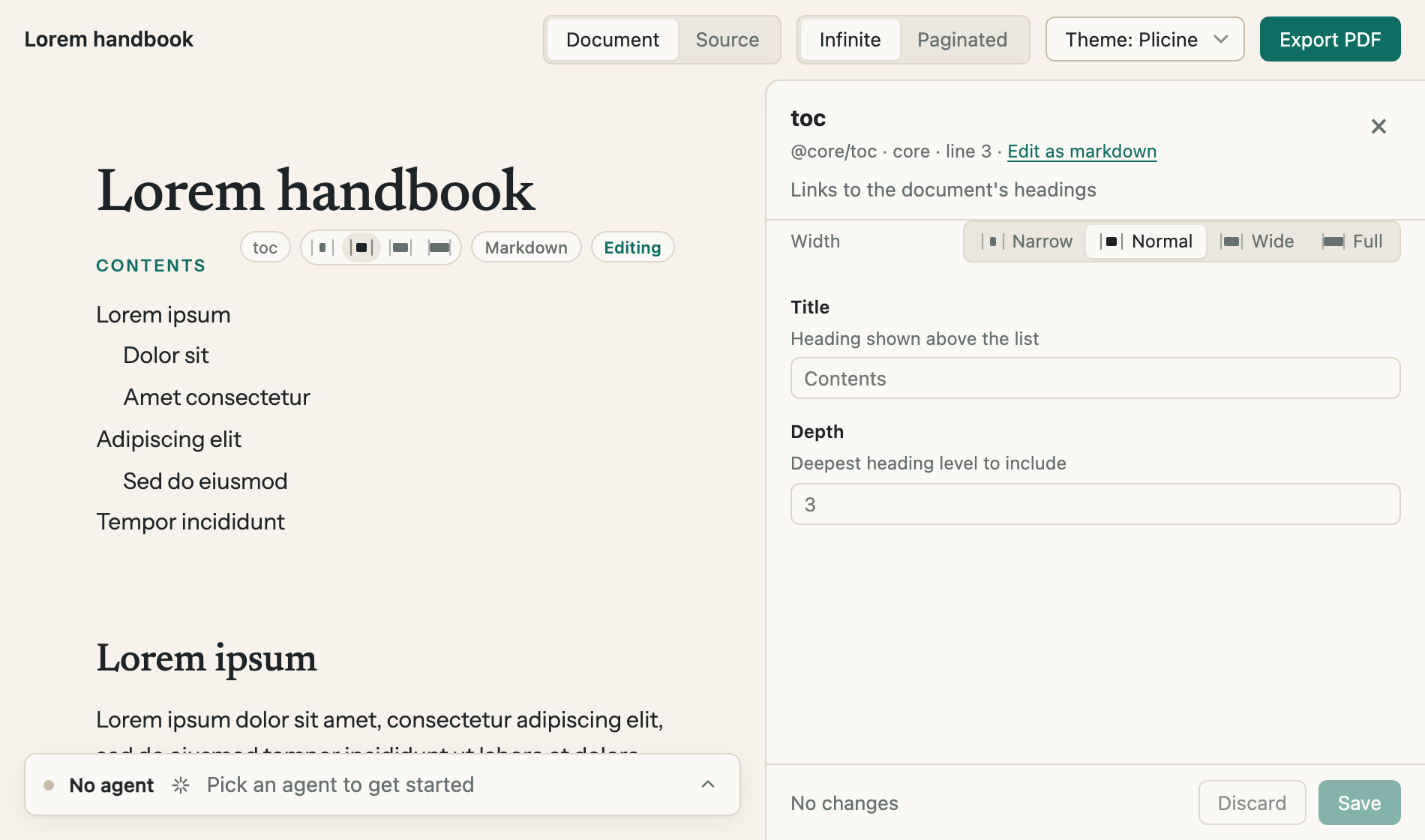
The form has two fields. The page redraws as you change them, and nothing is kept until you press Save.
| Option | What it does |
|---|---|
| Title | The small heading over the list. It starts as "Contents". Empty it and the list has no heading |
| Depth | The smallest size of heading to list, from 1 to 6. Headings come in six sizes: # makes the biggest, ## the next one down, and so on. 3, the starting value, lists down to ###. 1 lists only the biggest |
| Width | Narrow, Normal, Wide or Full, as for every block |
The heading at the very top of a document is its title, so it's left out of the list. The exception is a document with more than one heading of the biggest size, where none of them is the title and they're all listed.
In a PDF
On paper each entry gets the number of the page its heading falls on, set against the right-hand edge. In the PDF file the entries are still links, so a click jumps to the section. Paginated shows both before you export.
For technical readers: Core blocks has the block as it's written in the file.