Page break
Starts a new page. Whatever comes after the block begins at the top of the next sheet, in the PDF and in the paginated layout. Use it before a section that should open a page of its own, such as terms at the end of a letter or an appendix.
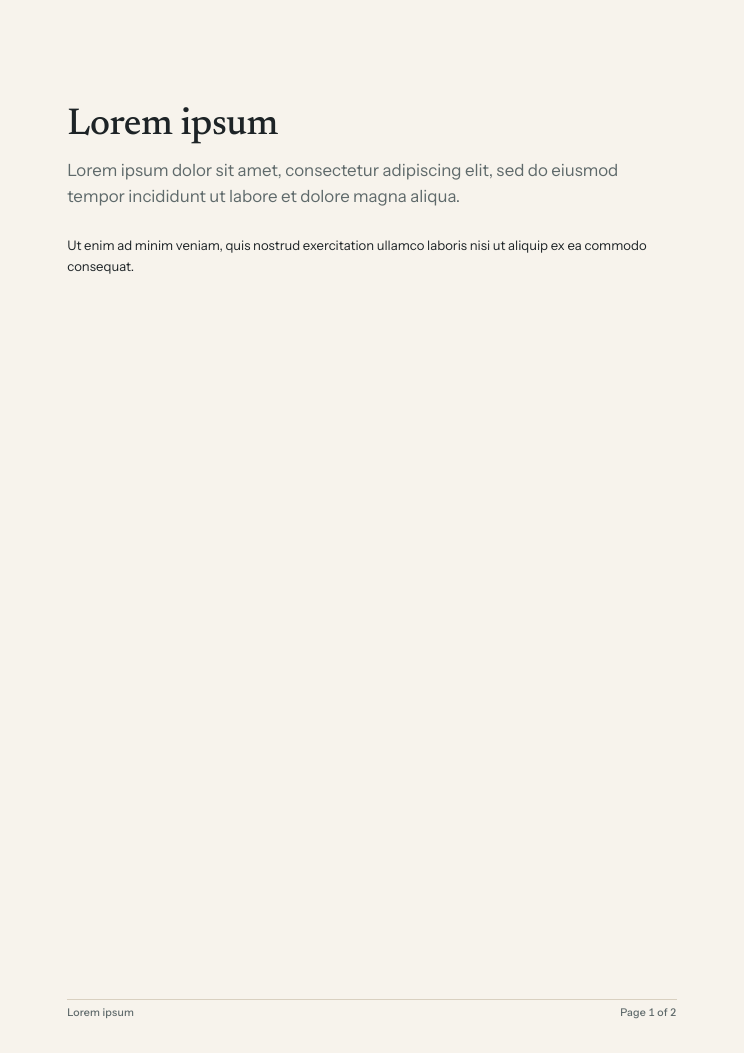
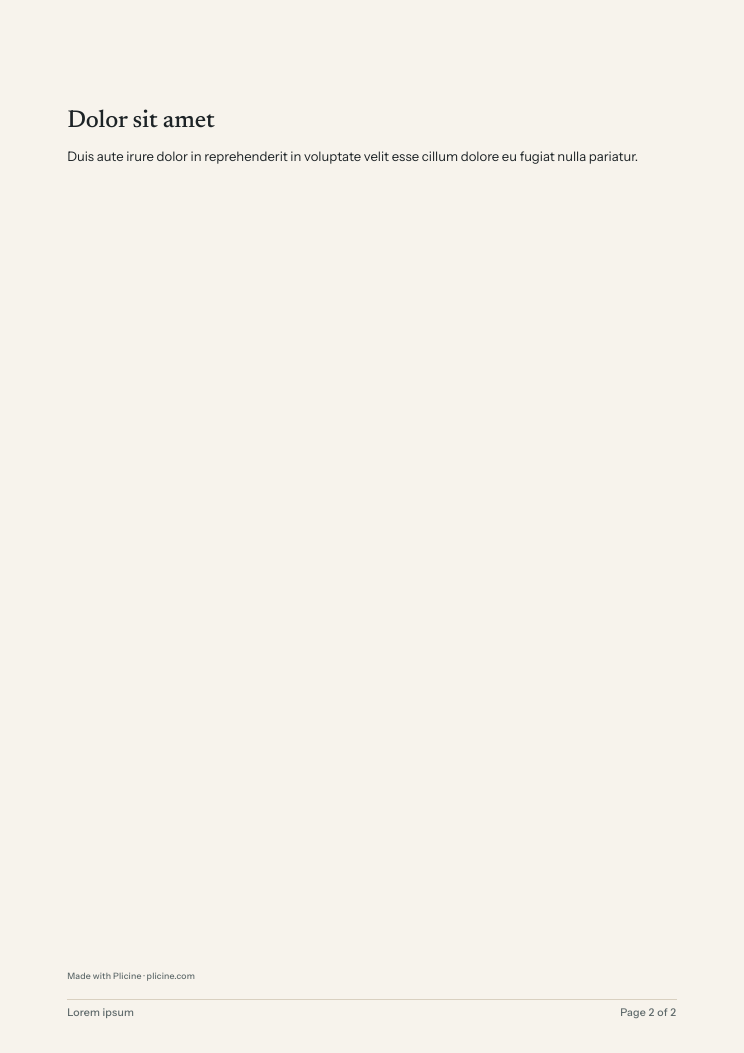
The two pages of a PDF with a page break after its second paragraph. The heading that follows the break starts page two, and the rest of page one is left empty.
On screen
The infinite layout has no pages to break, so there the block is a dotted line with a label. It marks where the break falls and takes up no room in the PDF.
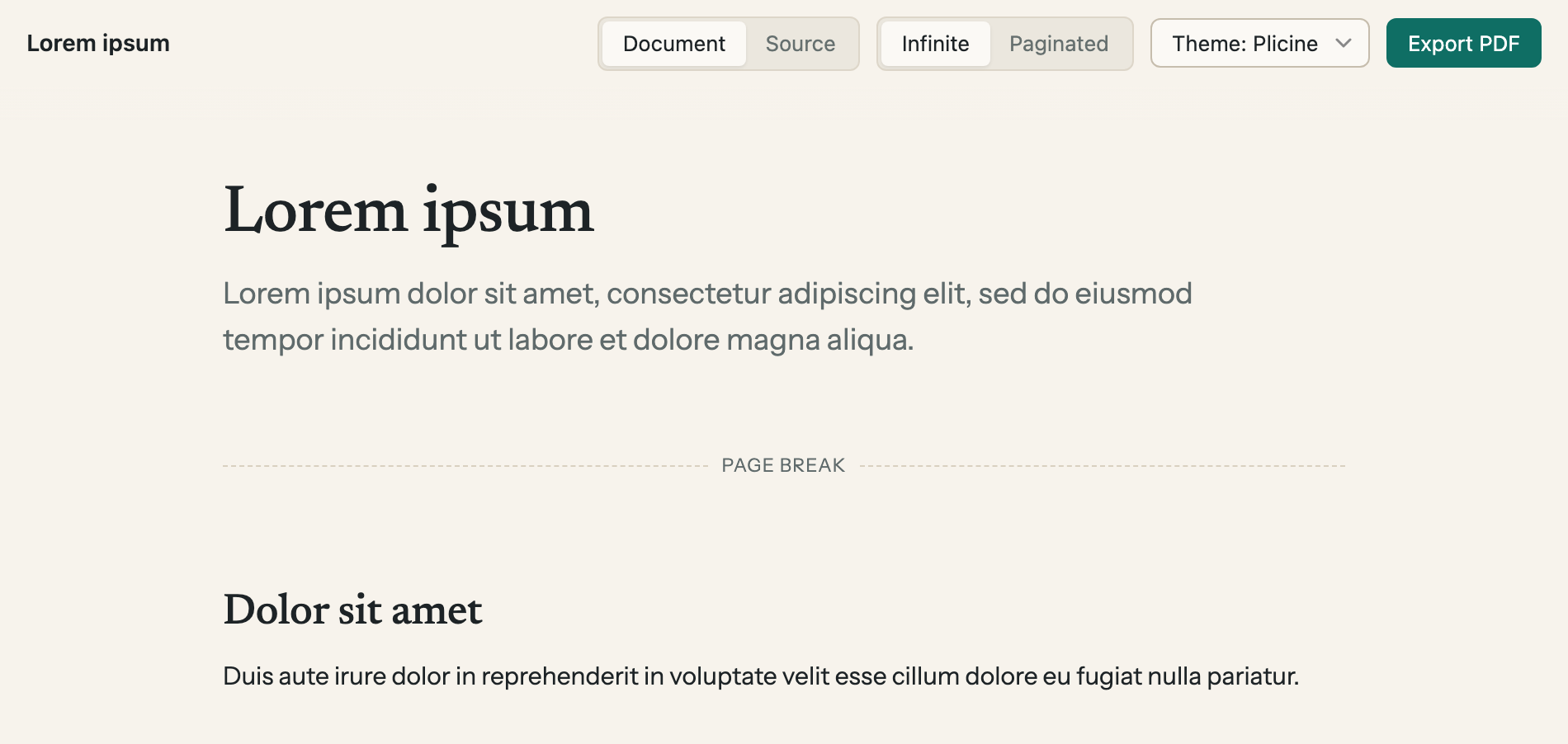
A page break in the infinite layout. Switch to Paginated to see the pages it makes.
Adding one
Type / at the start of an empty line and pick Page break, or use Add block between two things on the page (Adding a block).
To move a break, point at it and drag the handle that shows in the margin beside it; a line shows where it will land. To remove one, drag across it to select it, the way you'd select text, and press Backspace or Delete.
Its one option
| Option | What it does |
|---|---|
| Page | Leave it empty. It names a special kind of page for what follows, such as a sideways one for a wide table, and only does something when your theme has a page of that name. The built-in theme has none |
A page break has no width, since it draws nothing on paper.
For technical readers: Core blocks has the block as it's written in the file, and The .theme package covers named pages.